Discord PFP Complete Guide: Exact Size, Circular Crop & Upload Steps
Open the free square face generator and follow along.
Where your Discord avatar shows up
| Surface | What it needs | Tip |
|---|---|---|
| Chat messages | Reads at 40 px | High-contrast eyes survive the tiny size |
| Profile card | A 512 px source stays crisp | Avoid thin outlines that blur |
| Server member list | Same file, rounder crop | Center the face, not the hat |
| Nitro banner pairing | Colors that match your banner | Pick a palette that shares one hue |
Discord Avatar Size: 800x800 Recommended, 128x128 Minimum
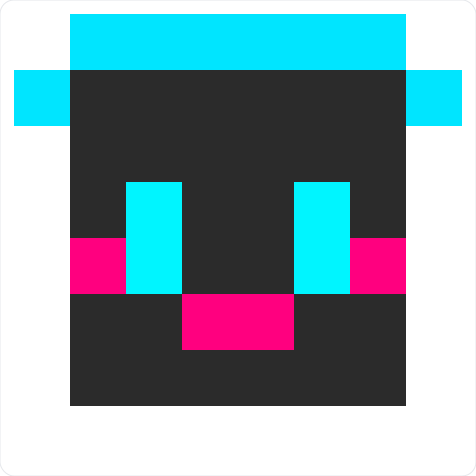
Discord profile pictures are square and display as circles. Upload at least 128x128 px; anything smaller is rejected or blurry. For crisp results on desktop, mobile, and large profile popouts, use 800x800 px. This 1:1 square gives Discord enough pixels to downscale to 128, 256, 512, and 1024 px variants. Export as PNG for sharp pixel art or JPG for photos; keep files under 8 MB. If you use the Square Face Generator, set canvas to 800x800 and export 1x. A 1280x1280 source can work, but 800x800 is the sweet spot: fast upload, sharp avatar, no wasted detail. Avoid rectangular images; Discord will crop them. For animated avatars, keep the same square dimensions; Discord still uses the 128x128 minimum.
Circular Crop Safe Area: Keep Faces Inside the Center
Discord masks avatars into a circle, so the square corners disappear. On an 800x800 canvas, the visible circle is about 800 px wide, but UI borders and shadows can trim the edge. Keep important details—eyes, logo, text—inside a centered safe circle of roughly 640x640 px, leaving a 80 px margin on each side. For a face, center it around 400x400 and zoom so the head fills 60–70% of the circle. Test at 128x128: if the expression or mascot is still readable, the crop is safe. Use guides in the Square Face Generator, then export. Avoid critical elements in the four corners; they will be cut. For text logos, stay inside 560x560 px for extra safety on mobile.
Animated vs Static Discord PFPs: Which Should You Upload?
Static PNG or JPG avatars work for every Discord account and load instantly. They are best for pixel-art faces, clean logos, and low-bandwidth users. Animated GIF avatars require Discord Nitro; without Nitro, the GIF may stay static or fail to animate. If you use Nitro, keep the animation simple: 2–3 second loop, under 8 MB, 800x800 px. Complex 60 fps GIFs can stutter and hit size limits. For a classic Flash-style PFP, a subtle 12–15 fps blink or bounce looks smoother than a busy loop. For modern pixel art, export a static 800x800 PNG first, then an optional animated GIF. Non-Nitro friends will still see a clean static fallback if you set it correctly. Discord displays animated avatars only when Nitro is active on your account.
How to Upload Your Discord PFP: Step-by-Step
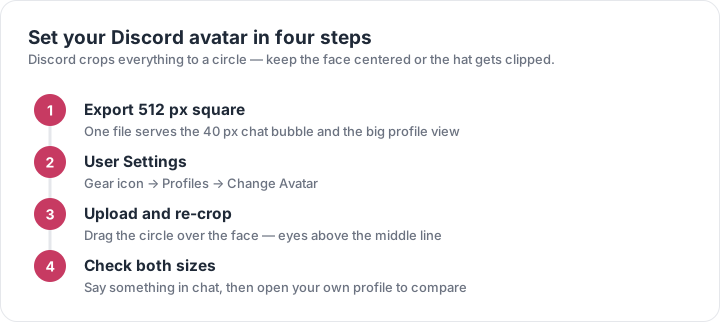
On desktop, open Discord and click your avatar bottom-left, then User Settings. Go to My Account, click Edit User Profile, and select Change Avatar. Choose your 800x800 PNG, JPG, or GIF. Discord opens a circular crop tool: drag to center the face, zoom until the head fills about 70% of the circle, then click Apply. On mobile, tap your avatar, Edit Profile, tap the avatar, select Upload, then crop and save. If the upload fails, check that the file is at least 128x128, under 8 MB, and not corrupted. Click Save Changes. Refresh Discord with Ctrl+R or restart the app. Your new PFP should appear in 5–10 seconds; if not, log out and back in. This works on Windows, macOS, Linux, iOS, and Android.
Create a Discord-Ready PFP with Square Face Generator
Use the Square Face Generator to make a perfect 800x800 avatar in classic Flash or modern pixel-art styles. Start with an 800x800 canvas, enable the circular safe-area guide, and center the face or mascot. Choose a style, adjust colors, then export PNG for static use. If you want animated, export a 2–3 second GIF loop under 8 MB. The tool keeps 1:1 ratio, so no additional cropping is needed. Before uploading, preview at 128x128 to confirm readability. For best results, avoid tiny text below 24 px on the 800x800 canvas, because it vanishes when Discord scales down. Save both the 800x800 master and a 128x128 test copy. Then follow the upload steps above.